

Guide
Artifacts & documents
Opening documents
Click any source or artifact in the sidebar and it opens right in the main area — not in a separate app. This is deliberate: switching to your PDF reader or Word breaks the thread between the document and the chat you're reading it from. A file Axon can't display shows you its path instead, with Open externally to open it in its own application.
The viewer's More actions menu (⋮, top right) has what else you can do with the open document: Edit, the exports below and Open externally — and, for a source, Chunks (the passages Axon indexed from it) and History (how it changed over time).
Artifacts
An artifact is something Axon produced — a report, a document, a deck, a saved conversation — rather than something you added. Artifacts are listed in the sidebar's ARTIFACTS section, filed under the project they came from.
- Ask for a file and you get one. Ask for a report, a Word document,
slides or a PowerPoint deck, and Axon saves it straight into the project's
Artifacts — an HTML page by default or for a report,
.docxfor Word, an HTML deck for slides,.pptxfor PowerPoint — instead of pasting it into the chat. - Keep a conversation. From the chat's More options menu (⋮, top right of the chat), Add to artifacts saves the conversation as an artifact you can reopen, edit or export later. See How to: Save a chat answer as an artifact.
- Start a blank one. The New file icon on the ARTIFACTS heading (shown when the pointer is over it) creates an empty file to write in.
Answers don't cite artifacts until you make them sources. Each artifact's ⋮ menu in the sidebar — shown when the pointer is over its row — has Add to sources, which copies it into the project's folder and indexes it like any file you added yourself. See How to: Make an artifact citable.
Editing
A Markdown or text file opens ready to edit — there's no Edit step to find first. Formatting renders as you type and collapses to hidden Markdown wherever your cursor isn't, the way Obsidian's live preview does; move your cursor onto a heading, a bold word, or a link and the raw symbols reappear so you can change them:
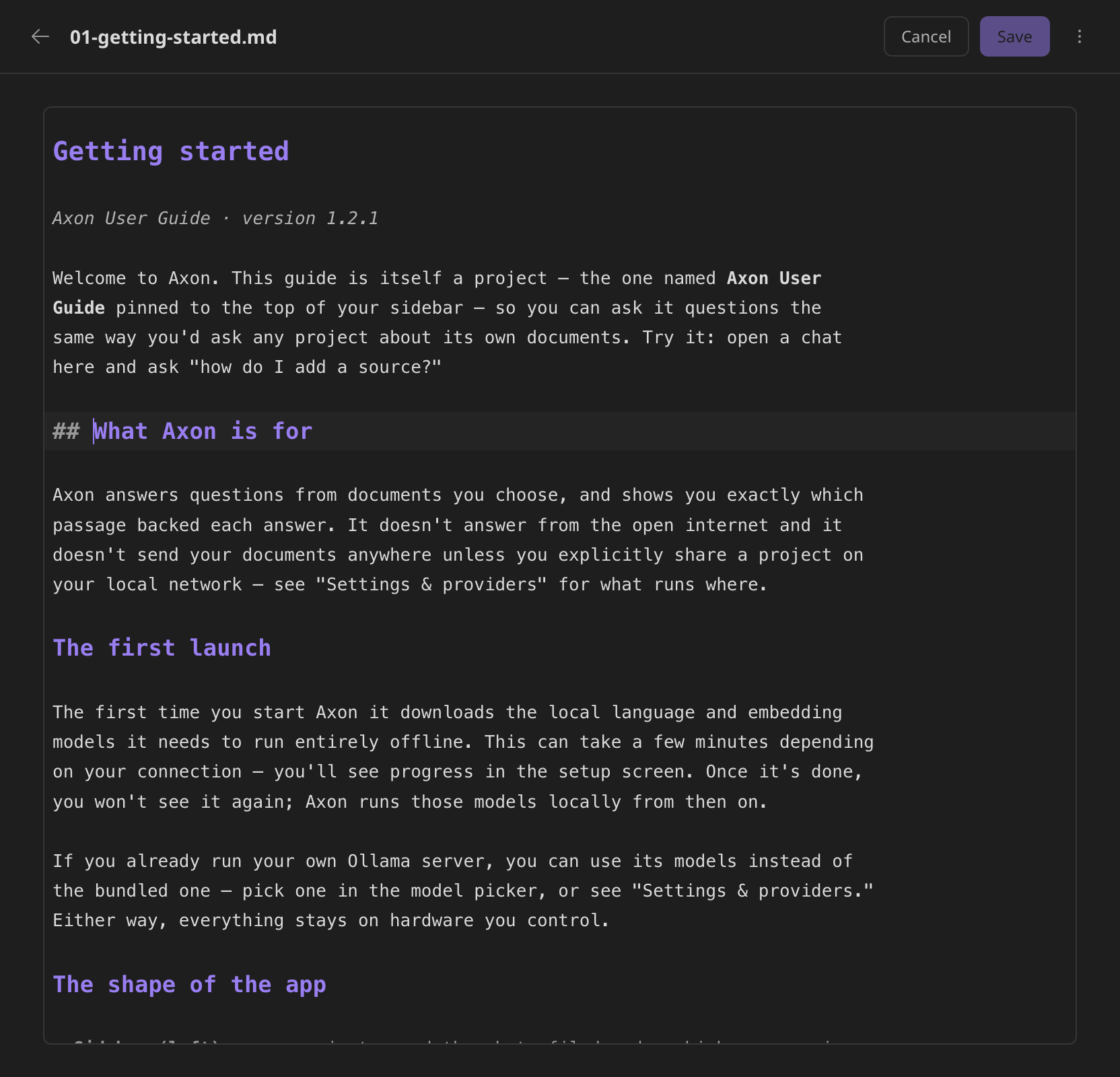
Click a link to follow it — a link to another page in the project opens that page here, and a web link opens in your browser. To edit a link instead, move the cursor into it with the arrow keys.
Save writes your changes back without leaving the editor; Cancel discards them — asking first if there are unsaved changes — and shows the document as rendered, where More actions → Edit reopens the editor. Editing a source updates what future answers retrieve from it, the same as editing the underlying file would.
See How to: Write and format Markdown for the shortcuts.
Exporting
Exports are under the viewer's More actions menu:
- Export to Word is offered for a web page or a Markdown document, and
produces a real
.docx— headings, tables and diagrams come across as actual Word structure (merged cells, styled headings, embedded images), not a flat dump of text. Diagrams are rendered as images at export time, matched to their place in the document. - Export to PDF is offered for an audit record. A record is a statement about a moment, which is why Axon won't let anyone edit one — so it's offered as a file that gets filed, not one that invites revision.
An audit record itself comes from a chat: Save audit record in the chat's More options menu saves the full record of the conversation — what was asked, what was retrieved, what was said — into Artifacts. See Search & citations for what's in it.
An export is saved as a new file in the project's Artifacts, beside what it came from. It never overwrites an earlier export.
Branded documents (Pro)
With Pro, the documents you hand to a client carry your firm's letterhead. Set it up once under Settings → Branding — a logo, your firm's name, an accent colour and a footer line, such as "Confidential — prepared for the client":
| File | What it carries |
|---|---|
| Word | Logo and firm name in the header, headings in your accent colour, and the footer line with a page number on every page |
| Logo and firm name at the top, headings in your accent colour, and the footer line at the end | |
| PowerPoint | Logo top-right and the firm and footer line bottom-left on every slide, with titles in your accent colour |
| Excel | Table header rows in your accent colour; when printed, the logo and firm at the top of every page and the footer line with page numbers at the bottom |
It applies to exports from the viewer and to the Word, PowerPoint and Excel files the assistant writes for you. Without Pro the same documents are made without the letterhead — nothing else about them changes. A file made before you set up branding keeps the look it had; export it again to brand it.
Does something here not match what you see in Axon? Tell us.