
Guide
Getting started
Welcome to Axon. This guide is also available inside the desktop app: it is the project named Axon User Guide, always first in your list of projects, so you can ask it questions the same way you'd ask any project about its own documents — try "how do I add a source?"
Not installed yet? Start with Install Axon and the system requirements.
What Axon is for
Axon answers questions from documents you choose, and shows you exactly which passage backed each answer. It doesn't answer from the open internet, and it doesn't send your documents anywhere unless you explicitly share a project on your local network — see Settings & providers for what runs where.
The first launch
The first time you start Axon, the Setup assistant opens. Click Download the local models (~3.8 GB) to fetch the three models Axon runs on your machine — one to chat, one to search your documents, and one to read scanned pages (OCR). You'll see progress as each one downloads. After that, Axon runs them locally and you won't need to do this again.
If you close it before downloading, you can reopen it from Help → Setup Assistant… or Settings → General → Setup assistant → Open.
If you already run your own Ollama server, you can use its models instead of the bundled one — pick one in the model picker, or see Settings & providers. Either way, everything stays on hardware you control.
The shape of the app
- Sidebar (left): at the top, a search box that finds chats, artifacts and sources. Below it, the open project's sections: Chats, Artifacts and Sources.
- Project menu (bottom of the sidebar): the open project's name. Click it to switch to another project, create a new one, open a folder as a project, or manage, share and connect projects. The gear beside it opens Settings.
- Main area: the chat you're in, or a document or artifact you've opened.
Everything in Axon hangs off one idea: a project is a folder of documents plus the chats you have about them. There's no separate "upload" step that copies files somewhere hidden; a project just points at a folder.
The Sources section
The SOURCES section lists the project's files, and it's open whenever you open a project:
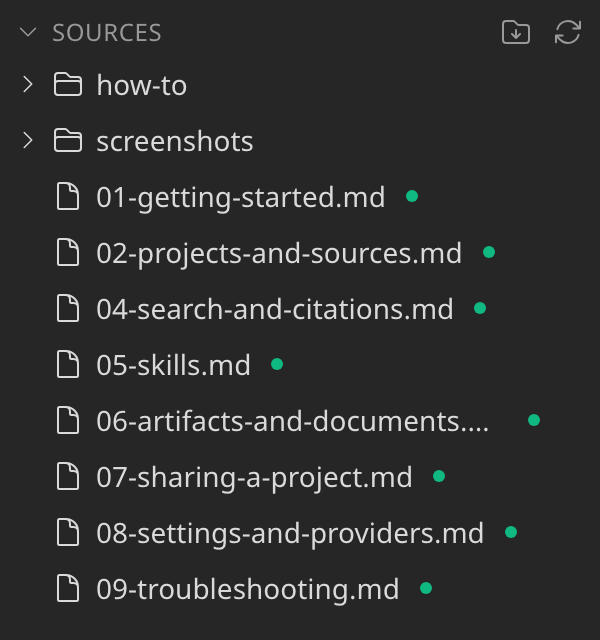
Click its heading to collapse or expand it. Move the pointer over the heading and two icons appear on the right — Reorganize sources into folders and Rebuild the search index:

- Reorganize sources into folders proposes a tidier folder layout for you to review — see How to: Organize sources into folders.
- Rebuild the search index reprocesses every file in the project from scratch. You rarely need it — files are kept up to date on their own — but it's there if search results seem out of step with your files.
To bring in files you already have, use the + button in the chat composer —
see Projects & sources. To write a blank new
file from scratch, use the New file icon on the ARTIFACTS heading.
Asking by voice
Click the microphone (Dictate) in the composer and speak; your words are transcribed into the message box for you to check before sending. It runs entirely on your machine — the audio is never uploaded. The first time, Axon downloads a speech model. Choose a larger model, or name the language you speak, in Settings → Language → Dictation.
Your first real project
Click the project name at the bottom of the sidebar and choose Create new project, give it a name, and you're done — no folder is created yet. The first time you add a file, or point it at a folder you already have, that becomes its permanent home. See Projects & sources for the two ways to get documents into a project.
Where to go next
- New to the app: read Projects & sources, then Search & citations.
- Want to know why an answer says what it says: read Search & citations.
- Something isn't working: jump straight to Troubleshooting.
Does something here not match what you see in Axon? Tell us.