

Guide
Projects & sources
A project is two things: a folder of documents, and the chats you have about them. There's no separate "library" or "upload area" — the folder is the knowledge base.
Two ways to start a project
Both start from the project menu — click the project name at the bottom of the sidebar.
Open an existing folder. Choose Open folder… and pick a directory you already keep documents in — Documents, a client's folder, a research archive. Axon reads everything in it where it is and never copies anything out of it. Opening the same folder again brings back the same project.
Create a new project and add files. Choose Create new project, then click the
+button in the chat composer. Under Add to sources, choose Add files for one or more existing files, or Add a folder for a whole folder at once: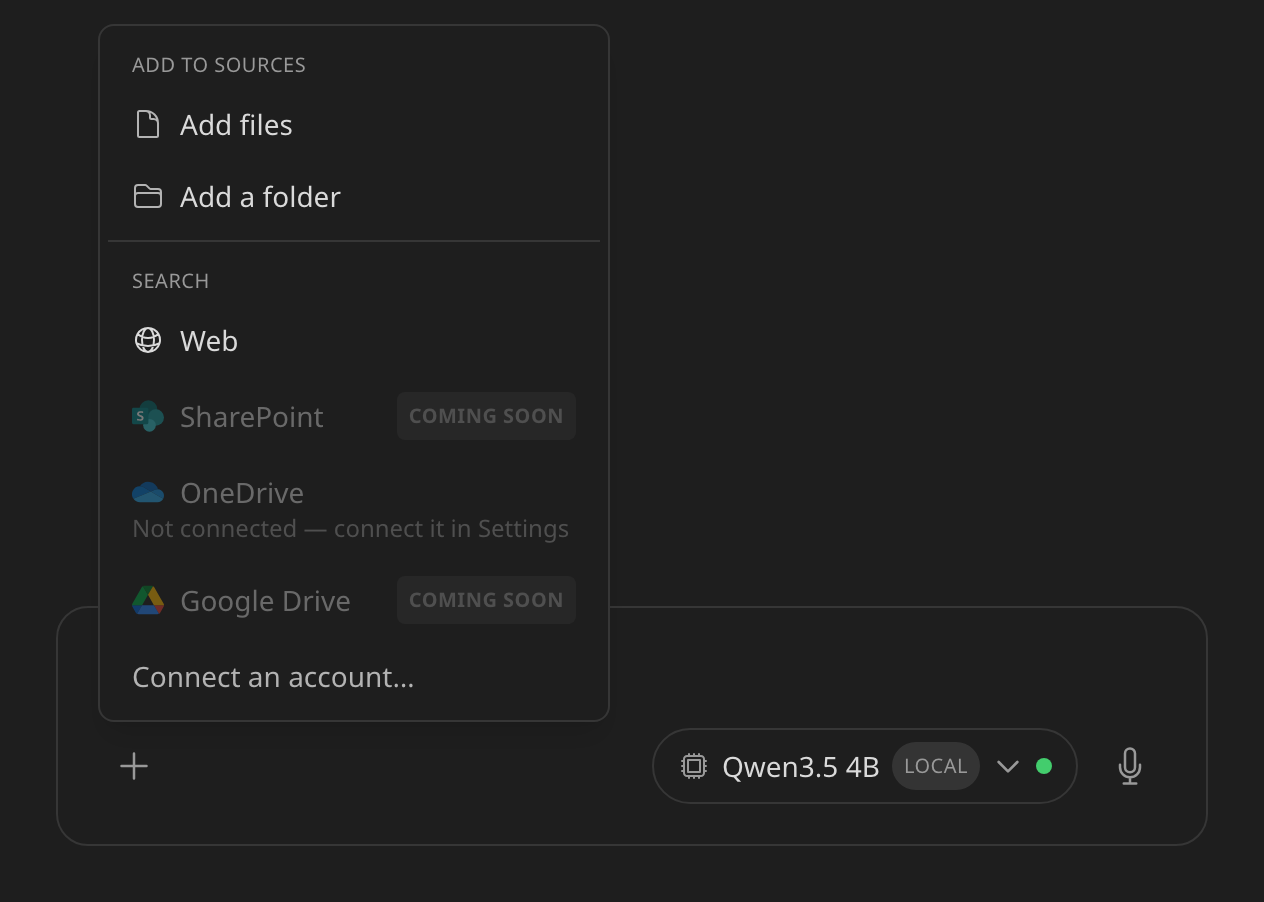
The first file you add creates a folder for the project automatically (under the projects location set in Settings → General → Projects); every file after that goes into the same folder. The same menu's Search section is for searching the web or a connected drive instead — see How to: Set up web search for connectors.
You can also paste a screenshot (or any copied image) while a project is open: it's saved into the project's folder as a new source, and its text is read with on-device OCR.
Either way, the folder a project points at is the one and only place its sources live. There's no hidden second copy — the file you see in Finder or Explorer is the file Axon reads.
What gets indexed
Everything in the project's folder, recursively, except:
- Hidden (dot-) folders.
- Anything matched by the project's Excluded files — gitignore-style rules you set in Manage project… → General. Use them to keep drafts, exports, or a subfolder you don't want searched out of the index without moving it out of the folder. See How to: Exclude files or a subfolder from indexing.
Scanning and indexing
Files you add with Add files or Add a folder (or by pasting) are indexed automatically a couple of seconds later — there's nothing to press.
Changes made outside Axon — a file edited in Word, one dropped into the folder in Finder or Explorer — are noticed when you switch back to Axon, and the card above the file list offers to update the index. Files deleted outside Axon are removed from the index too.
Opening a whole folder never indexes it automatically — you decide when. Axon scans it and shows what it found (how many files, what's new, changed, or gone) in a card above the file list, with no work done yet; the button on that card is what actually starts it — labelled Index these sources, Update index, or Add exact-word search depending on what's outstanding.
A file is only re-processed when it actually changed (by size and modification time, falling back to content if those look the same) — so touching a file, or a sync client rewriting its timestamp, doesn't trigger a full re-index.
Large folders and scanned PDFs (which go through on-device OCR) can take a while; you'll see a progress bar with the current file and stage while a run is in flight, and you can stop it from the same card.
Project instructions
Each project has Project instructions (Manage project… → Project instructions) — standing guidance added to every chat in that project. Use it for things like "always answer in bullet points" or "this project covers only the 2024 fiscal year." See How to: Give a project standing instructions.
Deleting a project
Deleting a project (Manage project… → Danger zone) forgets it in Axon — its chats and its search index — and always leaves your folder and its files exactly as they were. See How to: Delete a project.
The Axon User Guide project — this guide, inside the app — can't be deleted or renamed — it's your built-in reference and stays first in the project list.
Does something here not match what you see in Axon? Tell us.